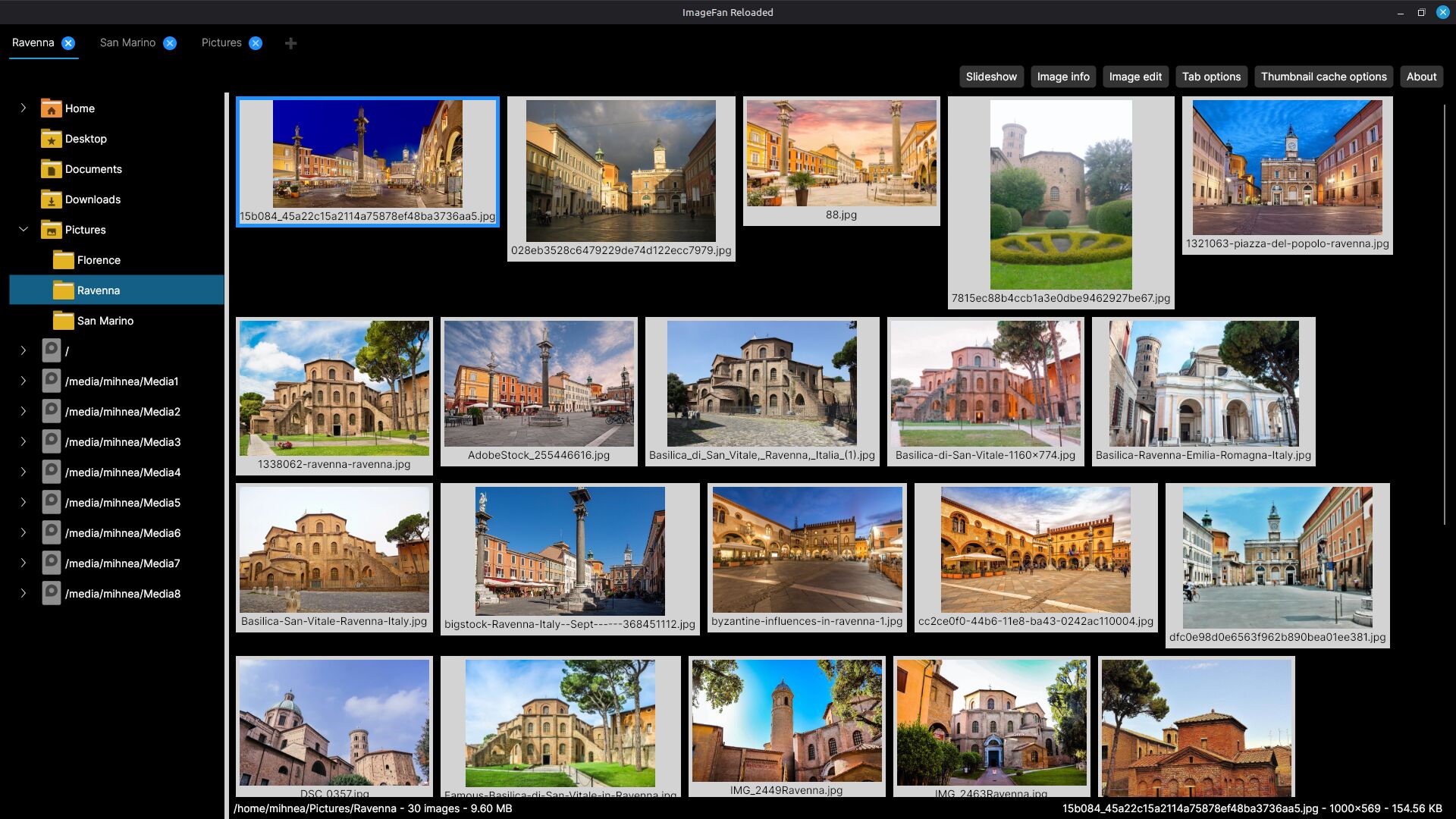
ImageFan Reloaded is a cross-platform, feature-rich, tab-based image viewer, supporting multi-core processing.
It is written in C#, and targets .NET 10 on Linux and Windows. It relies on Avalonia, as its UI framework, on Magick.NET, as its image manipulation library, and on SQLite, as its thumbnail cache database.
Features:
- quick concurrent thumbnail generation, scaling to the number of processor cores present
- support for multiple folder tabs
- keyboard and mouse user interaction
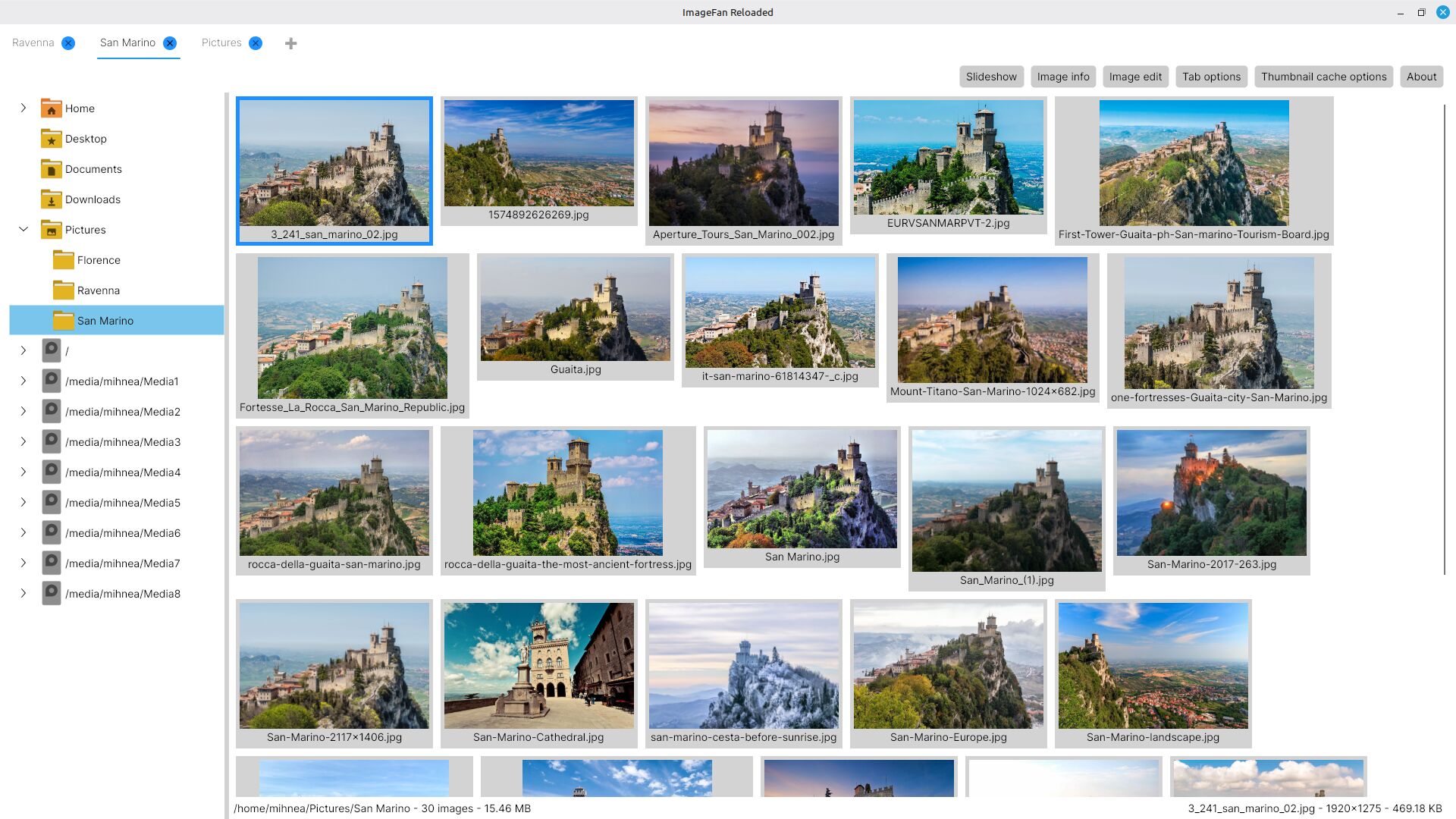
- dark and light modes, based on system settings
- 44 supported image formats: bmp, cr2, cur, dds, dng, exr, fts, gif, hdr, heic, heif, ico, jfif, jp2, jpe/jpeg/jpg, jps, mng, nef, nrw, orf, pam, pbm, pcd, pcx, pef, pes, pfm, pgm, picon, pict, png, ppm, psd, qoi, raf, rw2, sgi, svg, tga, tif/tiff, wbmp, webp, xbm, xpm
- fast and seamless full-screen and windowed navigation across images
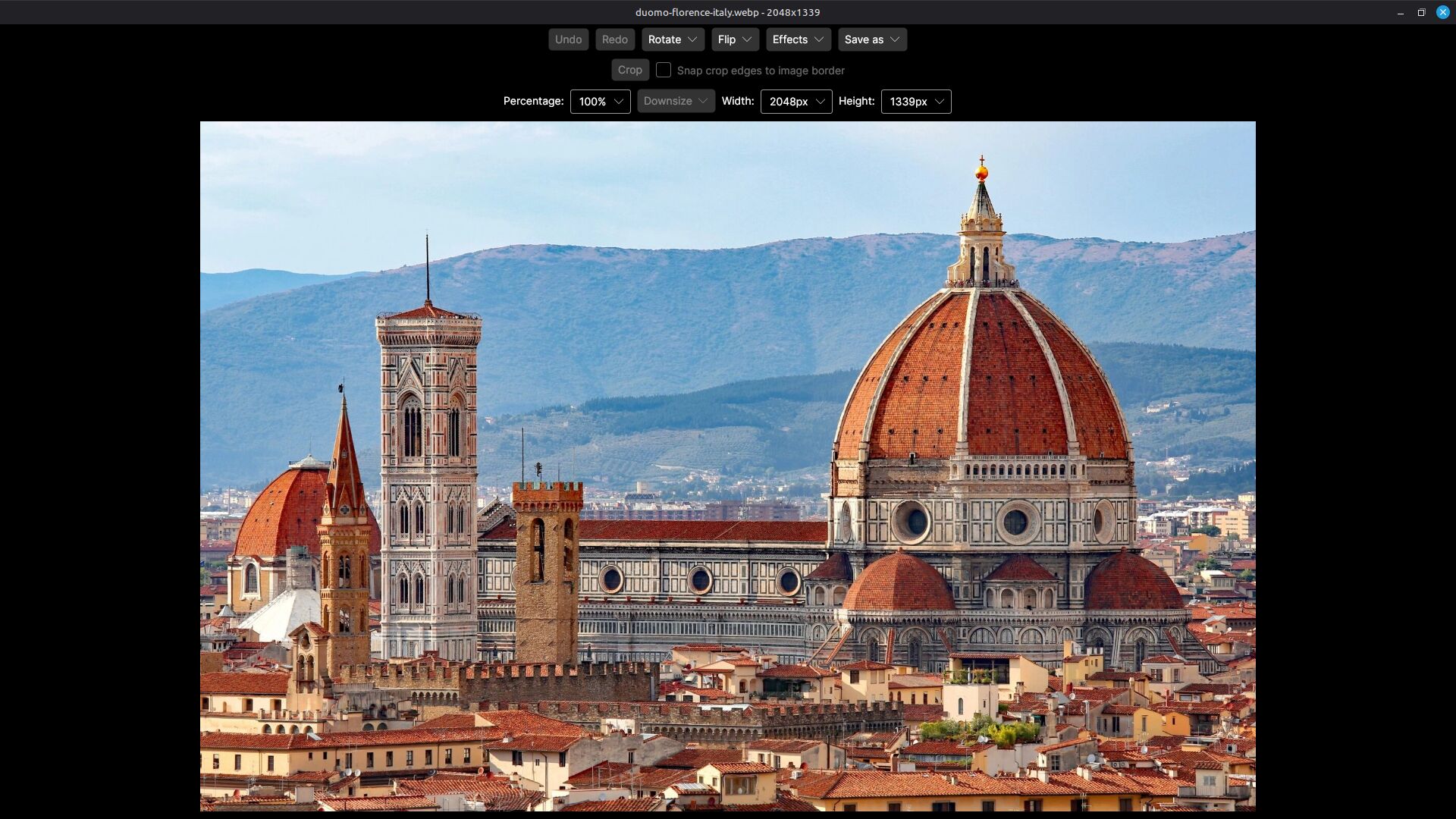
- image editing capabilities, with undo support: rotate, flip, effects, save in various formats, crop and downsize
- image animation support for the formats gif, mng and webp
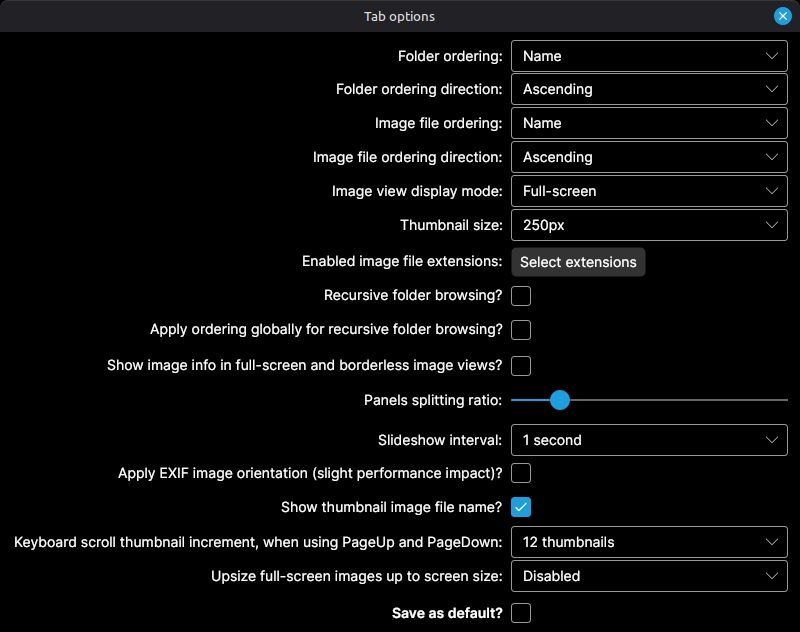
- folder and image file ordering by name, last modification time and random shuffle, ascending and descending
- configurable thumbnail size, between 100 and 1200 pixels
- thumbnail caching capability for fast folder browsing
- slideshow navigation across images
- image info containing file, image, color, EXIF, IPTC and XMP profiles
- automatic image orientation according to the EXIF orientation tag
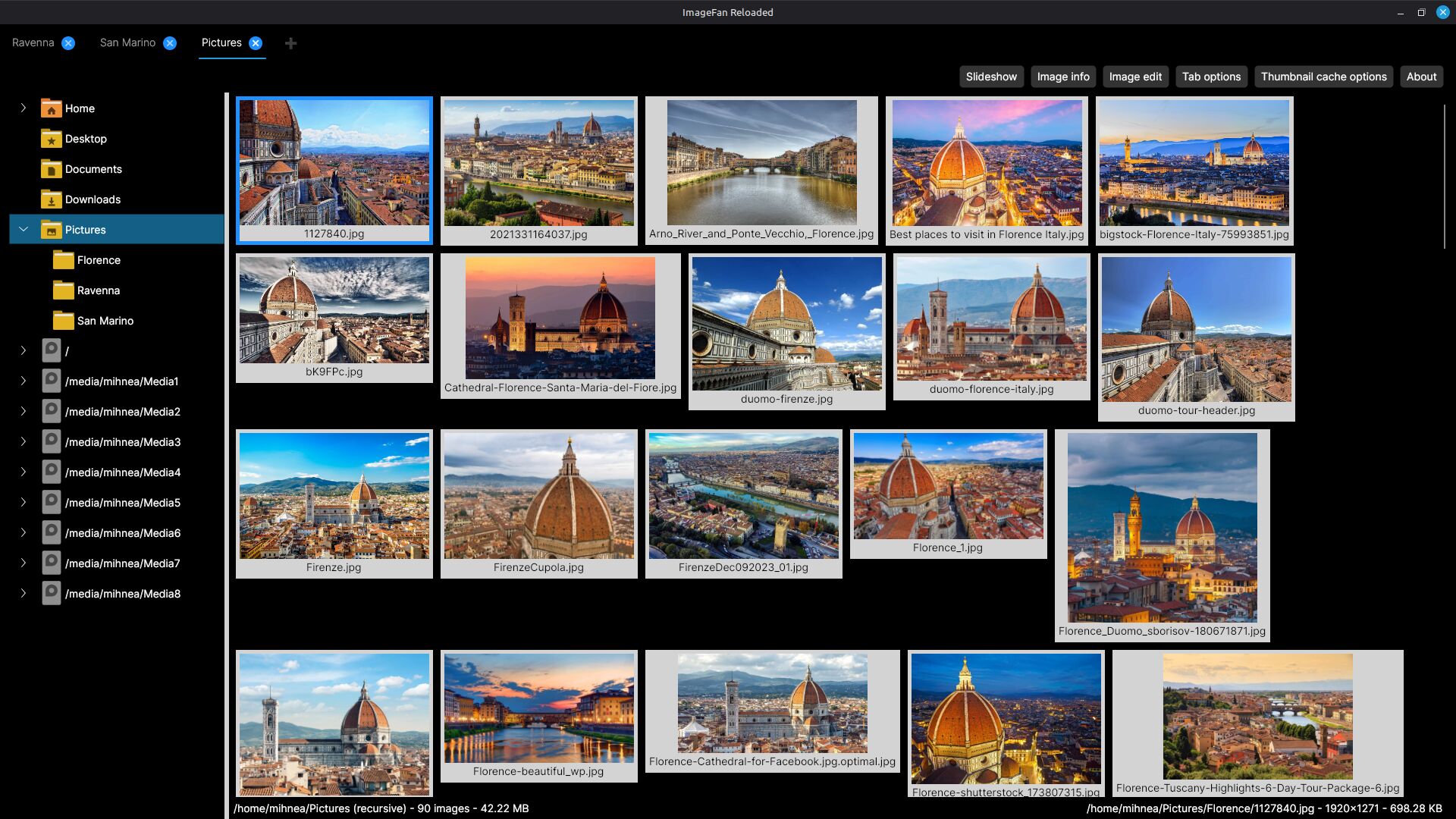
- toggle-able recursive folder browsing
- targeted zooming in, and moving over the zoomed image
- command-line direct access to the specified folder or image file
User interface:
- left mouse button for interacting with tabs and folders, and for selecting, opening, zooming in and out, and dragging images
- right mouse button for displaying image info, and for returning from the opened image to the main view
- mouse wheel for scrolling through folders and thumbnails, and for navigating back and forward through opened images
- key combos Ctrl+Plus for adding a new tab, and Ctrl+Minus for closing an existing tab
- key combo Shift+Tab for cycling through tabs
- key Tab for cycling through controls in the active tab
- key combos Ctrl+N, Ctrl+M and Ctrl+B for changing folder ordering between name, last modification time and random shuffle
- key combos Ctrl+A and Ctrl+D for changing folder ordering direction between ascending and descending
- keys N, M and B for changing image file ordering between name, last modification time and random shuffle
- keys A and D for changing image file ordering direction between ascending and descending
- digit keys 1, 2, 3 and 4 for switching between full-screen, windowed, windowed maximized and windowed maximized borderless image view modes
- keys N and M for switching between normal and maximized view modes in the windowed and windowed maximized image views
- keys + and - for changing thumbnail size by an increment of 50 pixels
- key U to toggle showing file names under thumbnail images
- key S for slideshow navigation
- key T for displaying Image edit view, and for switching from command-line image file access mode to thumbnail navigation mode
- keys in Image edit view: U for undo, I for redo, R for rotate, F for flip, E for effects, S for save as, C for crop and D for downsize
- key F for displaying Image info view
- key R to toggle recursive folder browsing
- key G to toggle global ordering for recursive folder browsing
- key E for applying EXIF image orientation
- key O for displaying Tab options view
- key C for displaying Thumbnail cache options view
- keys H and F1 for displaying About view
- keys Up, Down, Left and Right for navigating through the folders tree
- keys Up, Down, Left, Right, PageUp, PageDown, Backspace and Space for back and forward navigation through thumbnails and opened images
- keys PageUp, PageDown, Backspace and Space for scrolling through thumbnails
- key Enter for entering image view and zoomed image view modes
- key combos Ctrl+Up, Ctrl+Down, Ctrl+Left and Ctrl+Right for dragging zoomed images
- key I to toggle showing image info in image view and zoomed image view modes
- key Esc for exiting image view and zoomed image view modes, and for quitting application

![@dependabot[bot]](https://avatars.githubusercontent.com/in/29110?s=64&v=4)


